
Installation guideline
- Create an account at Retool or request an invite to the existing project. At the moment Retool doesn’t allow users to have multiple projects. So keep in mind that it’s impossible to use one account on different projects.
-
Download the following
JSONconfig for users management -
Import prebuilt applications: open
Apps>Create New>From JSONand choose downloaded file above.
- Attach resources (API or Database) for performing Retool queries: СRUD operations with data, HTTP requests, etc. Select the query, click on
Resourceand choose one. Look at the App Resources section to see how to connect different types of resources.
Predefined Apps
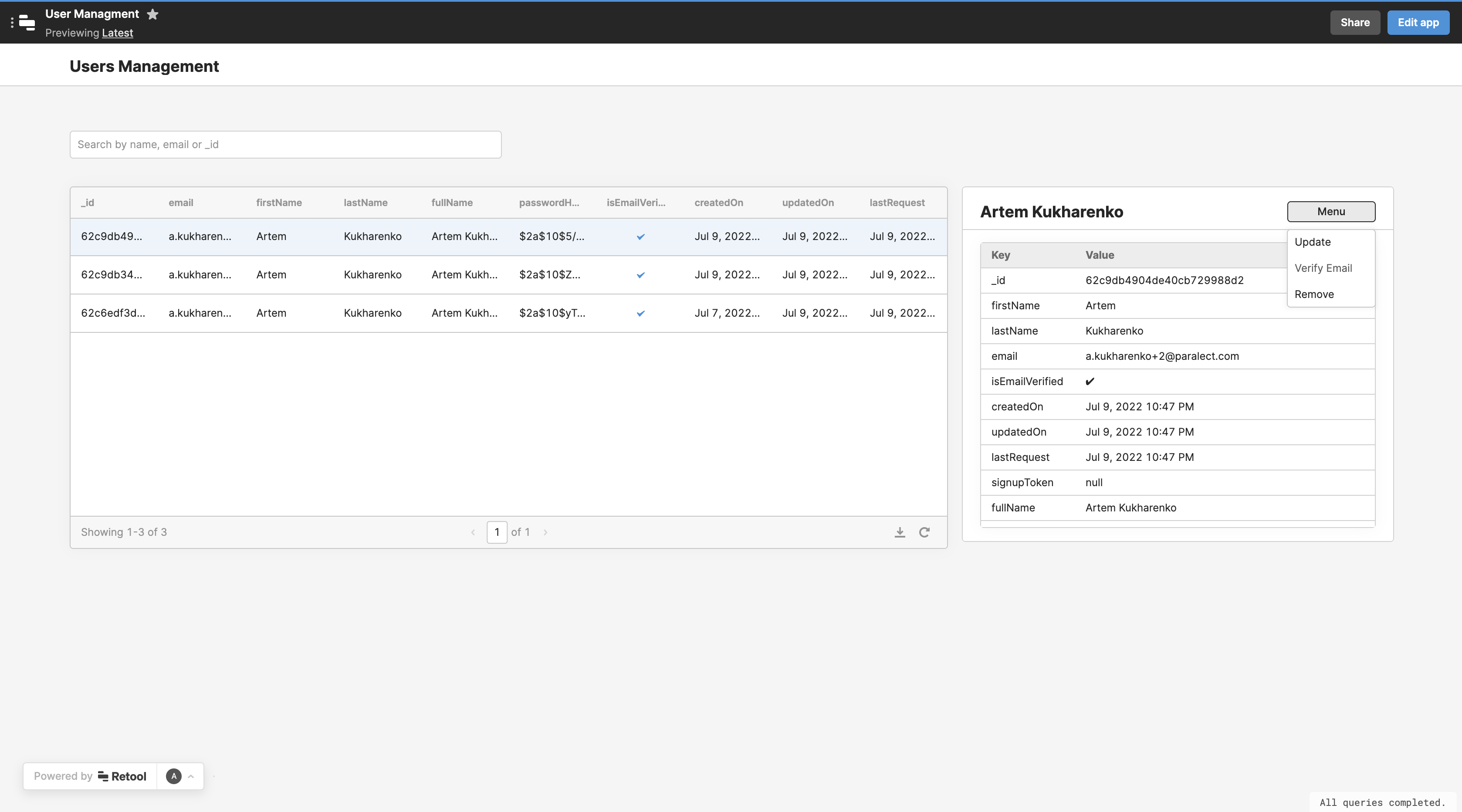
Users Management App
The application is built for user administration, it can be extended and used as internal admin panel. The main features are:- Users are displayed in the table.
- You can find a particular user.
- You can see the user’s details and apply a set of actions to the user. Default actions are:
Update,Remove,Verify Email.
App Resources
This section helps you to connect the resources that are used by predefined Retool apps.REST API
To connect API service:- Select
REST APIresource - Give a name to the resource
- Write
Base URLof your server. For local development you need to tunnel the traffic. - Add
x-admin-keyheader. The value forx-admin-keyis stored in config environments asadminKey.
MongoDB
To connect MongoDB service:- Select
MongoDBresource - Give a name to the resource
- Select
Use a database connection string. For local development you need to tunnel the traffic. - Write
Connection Stringof your database. The value forConnection Stringis stored in config environments asmongo.connection.
Local development
For some of App Resources will need to tunnel your local traffic.Tunnel http traffic
- Install ngrok
- Run
ngrok http <your-api-port>
https://617c-93-125-14-163.ngrok.io
Tunnel mongo traffic
- Install ngrok
- Run
ngrok tcp <your-mongodb-port>. You will see the forwarding link, for exampletcp:/2.tcp.ngrok.io:19888. - Paste generated route to
mongodb://root:root@<generated-route>:19888/api-development?authSource=admin&replicaSet=rs&directConnection=truelink.
mongodb://root:root@2.tcp.ngrok.io:19888/api-development?authSource=admin&replicaSet=rs&directConnection=true